Nomad Help
Answers for the work you need to finish
Search clear, verified answers about receipts, expenses, approvals, exports, billing, and account security.
Common questions
Product capabilities and policies in plain language, with account-specific help available after sign-in.
22 answers
Get started with Nomad
Watch signup, authenticator setup, sign-in and subscription basics.
Follow the illustrated stepsRead the full transcript
New to Nomad or authenticator apps? This guide takes you from signup to a secure sign-in, then explains where your subscription fits in.
Start at nomad-finance dot com and choose Start Free. For email signup, enter your name, email and a unique password. Open the verification email and follow its link. Then return to Sign in. If you already have an account or a team invitation, use that same email instead of creating a duplicate.
Nomad also asks for a code from an authenticator app. This is an extra check after your password. It is different from the email verification link, and the app generates the code on your phone.
Install Google Authenticator or Microsoft Authenticator from your phone's official app store. You only need one. Installing the app alone does not connect it to Nomad; you must add your Nomad account.
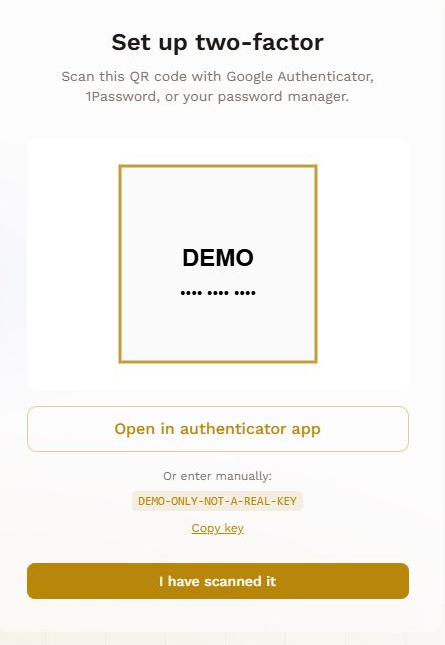
On your first Nomad sign-in, the setup screen displays a QR code. Keep that screen open on your computer. In Google Authenticator, tap the plus button and choose Scan a QR code. In Microsoft Authenticator, add an account and choose Other account, then scan Nomad's QR code.
Using only one phone? Tap Open in authenticator app on Nomad's setup screen. If that does not open your installed app, use the manual setup key and a time-based entry. Your setup key and QR code are private. Do not share them or use an example from a tutorial.
Return to Nomad, choose the button confirming that you have scanned the code, and enter the current six-digit code from your Nomad entry. Verify and continue. Save the recovery codes somewhere secure, separate from your phone, and confirm you have saved them.
Next time, sign in normally, then open your authenticator and enter the current code for that same Nomad account. You do not scan a new QR code at every login. Using Google to sign in and using Google Authenticator are separate things.
If a code fails, check the account label, wait for a fresh code, and check that your phone uses automatic date and time. If setup was restarted, an older entry may no longer match. If you have lost access, contact Nomad support; never send your password, setup key or recovery codes in a support message.
Your account and your subscription are separate. Nomad currently offers a fourteen-day trial with no credit card required. Before subscribing, review the current plan, billing interval, included features and seats. The workspace owner manages the subscription in web Settings. Team members join through an invitation; they should not purchase a duplicate workspace just to join their team.
You are ready to open the right workspace and capture your first receipt.
Set up your authenticator, step by step
Create your Nomad account, confirm your email, then sign in. When Nomad asks you to set up two-factor authentication, follow these steps. Already use an authenticator? Keep that app and add Nomad to it.
The phone examples show Android in English. Button wording may differ on iPhone or in another language. Select an image to enlarge it.
01Install the correct app
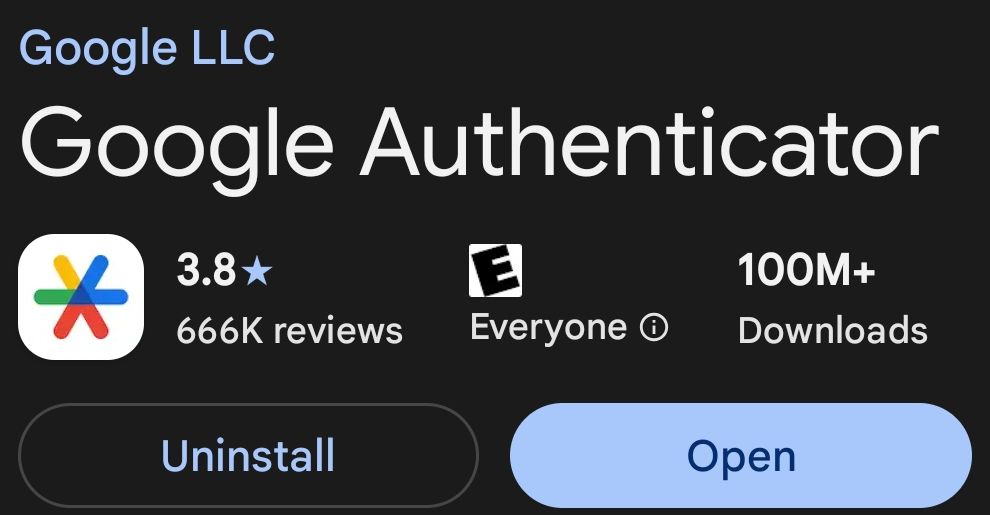
Choose Google Authenticator, published by Google LLC (Google on the App Store). Check both the name and publisher; the first sponsored search result may be a different app.
On Android, use the Google Play link below. Tap Install, then Open. If it already says Open or Installed, you can use the app you have.
Google Authenticator — Google Play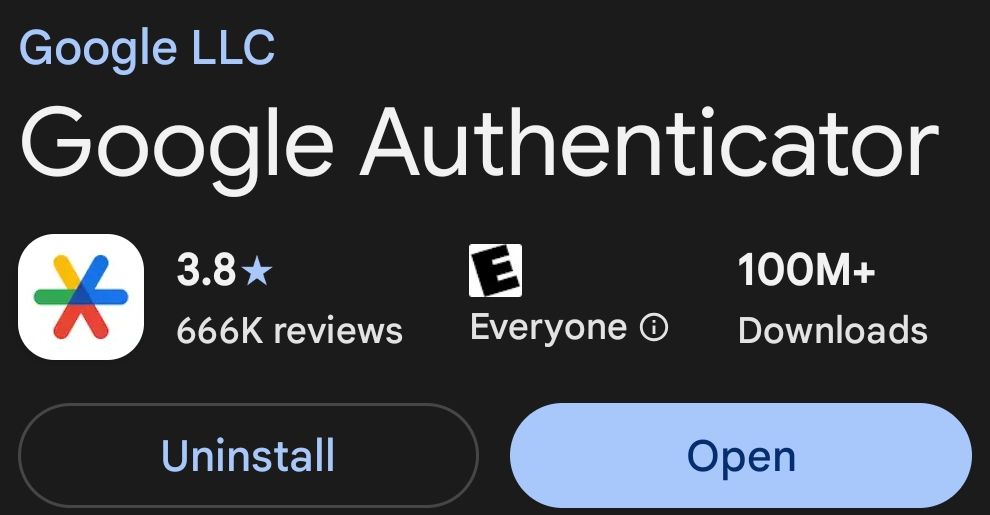
Actual Android screenshot. Open / Installed means the app is already on this phone. Status-bar details and unrelated results have been excluded. 02Add your Nomad account
With a computer and a phone: leave your private Nomad setup QR code visible on the computer. Open your authenticator on the phone.
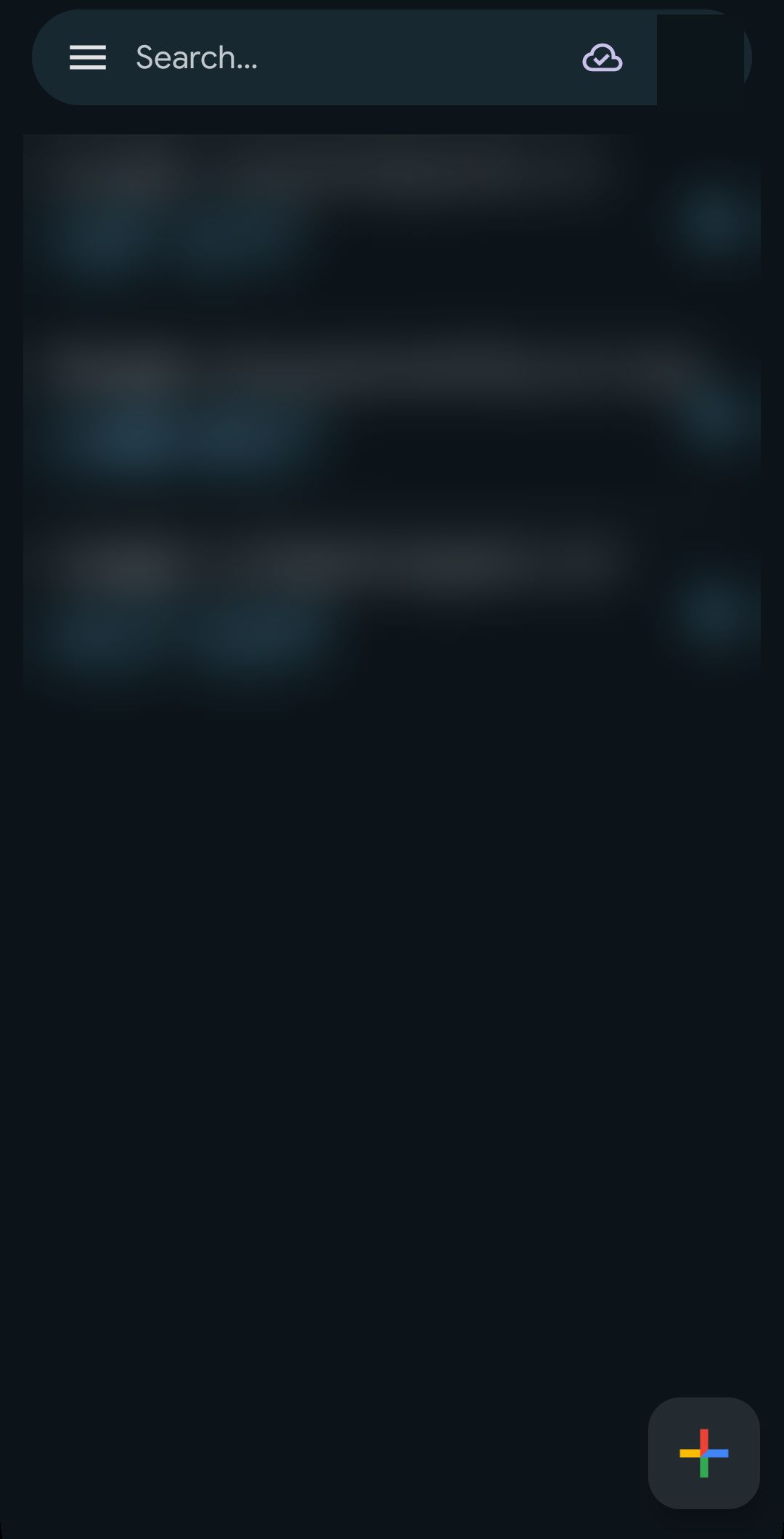
Tap the + button in Google Authenticator, choose Scan a QR code, allow camera access if asked, and point the camera at your own Nomad QR code.
On first launch, complete the welcome screens. You can use Google Authenticator without signing into a Google account; choose Use without an account if that option is shown.
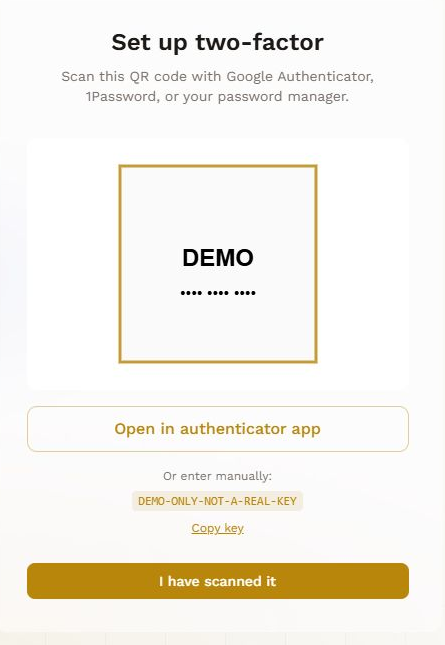
On your computer: Nomad setup. This example cannot be scanned; use the QR code from your own account. 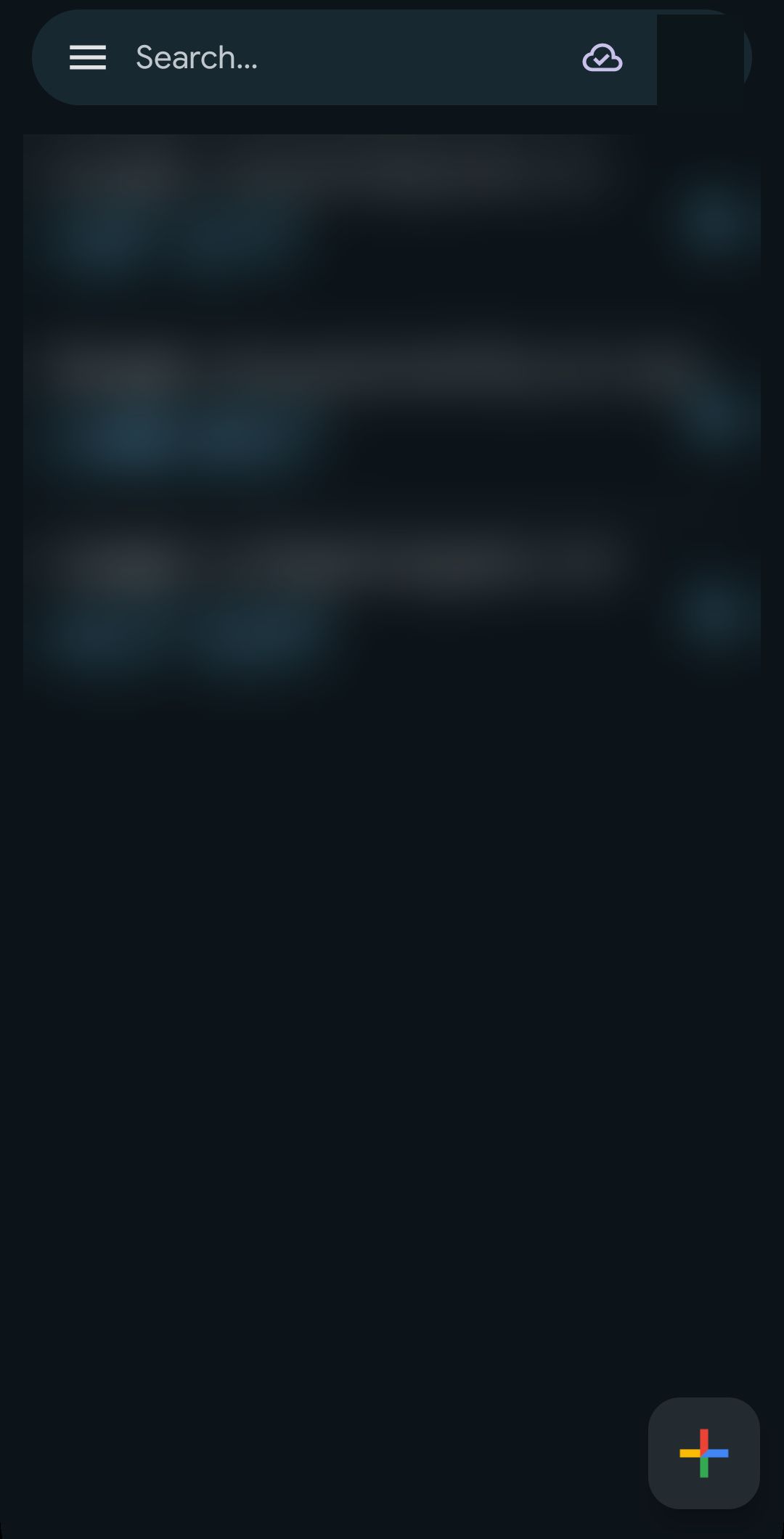
On your phone: the + button adds an account. Official Google example; account details are blurred. Using only one phone?
On Nomad’s setup screen, tap Open in authenticator app. If your authenticator opens, follow its prompt to add Nomad, then return to the Nomad browser tab.
If the link does not work, copy your private setup key. In Google Authenticator, tap + → Enter a setup key. Give the entry a recognisable name such as Nomad and your email, paste the key, choose Time based, and add it. Return to Nomad to verify.
Do not scan a tutorial image or share your QR code or setup key. Never paste the key into a search engine or a support message.
03Confirm the six-digit code in Nomad
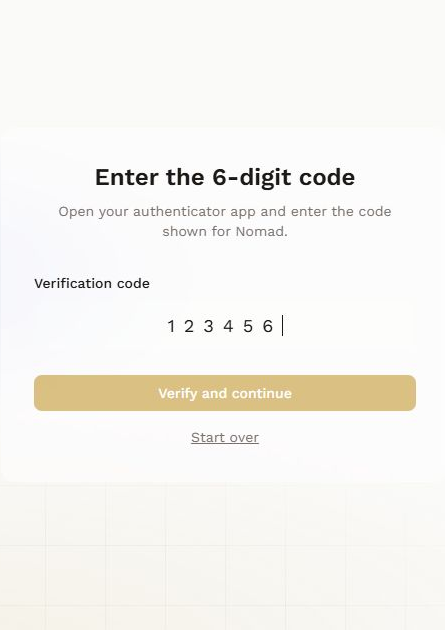
Return to Nomad and select I have scanned it. Open the new Nomad entry in your authenticator, enter its current six-digit code in Nomad, and choose Verify and continue. If the code is about to change, wait for the next one.
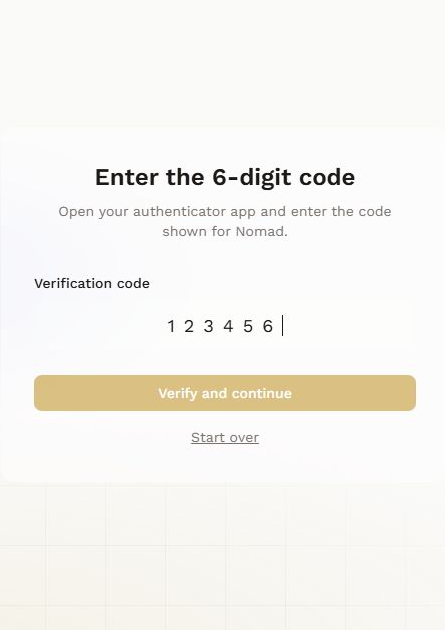
Nomad demonstration screen. The displayed codes do not work. 04Save your recovery codes
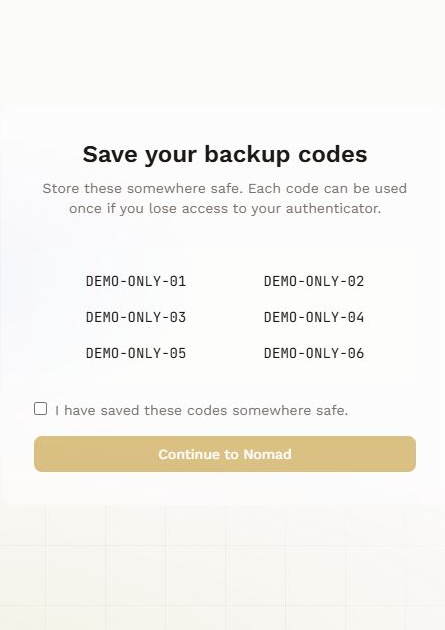
Store the recovery codes securely, somewhere you can reach if you lose your phone, such as a password manager. Confirm that you have saved them, then continue. Keep them private; they can restore access to your account.
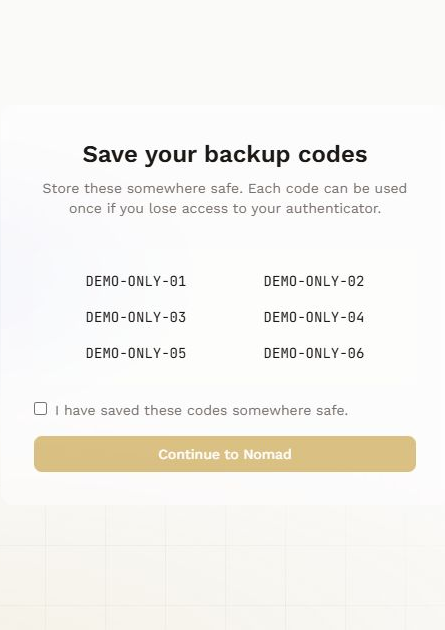
Nomad demonstration screen. The displayed codes do not work. 05Use the same entry next time
At your next sign-in, enter the current code from that same Nomad entry. You do not need a new QR code each time. A Google sign-in button and the Google Authenticator app are two different things.
My code is not accepted
Check that the entry belongs to the correct Nomad account, wait for a fresh code, and enable automatic date and time on your phone. If you restarted setup, the old entry may no longer match. Contact support if you have lost access, but never send passwords, setup keys or recovery codes.
Where does the subscription fit in?
Authenticator setup secures your account. The workspace subscription controls its plan and seats. Owners manage billing in web Settings; invited teammates join the existing workspace with their own email. You do not need to buy another workspace to accept a team invitation.
App images: Google / Google Play and supplied Android captures. Official setup instructions: Google · Microsoft.
Need help inside your workspace?
Open the in-app Help Center for workflow guides, direct links to the right screen, and secure workspace-scoped support.
Security and data location
Nomad protects data with encryption and access controls. We use specialized service providers, and some processing may occur outside Canada; we do not claim Canada-only data residency.
Read the Privacy PolicyStill have a question?
Email our support team for general product or account questions.
support@nomad-finance.com